How to issue an e-invoice in 1 minute with Outvoicer?
A practical guide for sole traders and companies. You'll learn, step by step, how to issue and send an e-invoice (from logging in to the moment the invoice reaches your client) and why an e-invoice is not the same as a PDF file sent by email.
Brigita Andersone ·
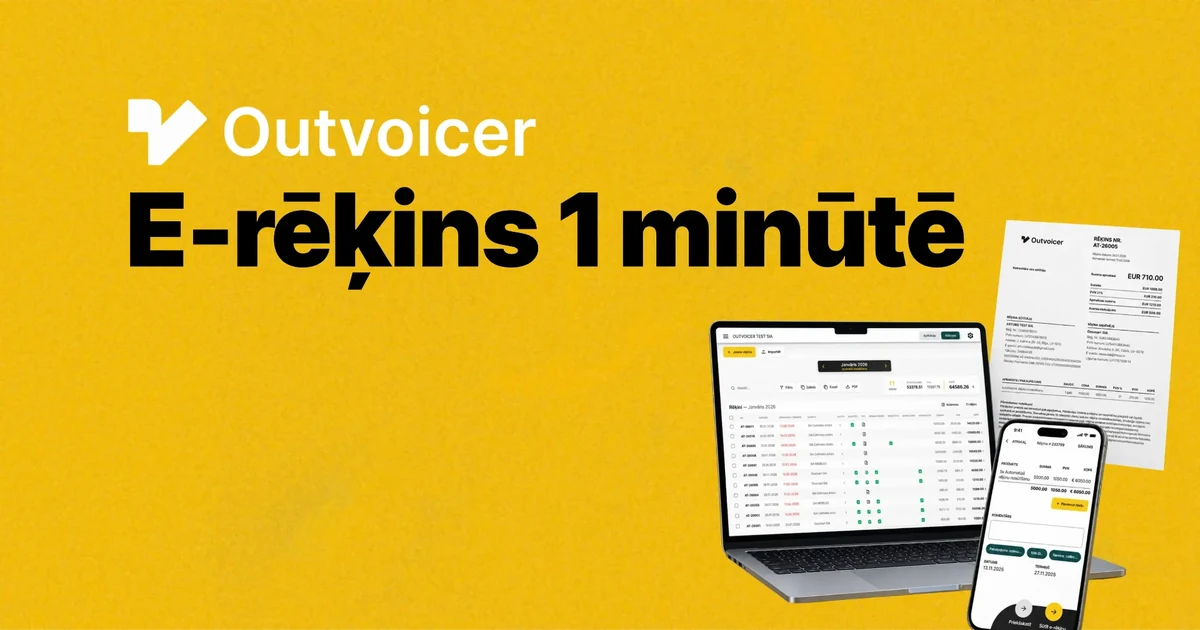
Are you still spending several hours a month, or even a week, on issuing invoices? In this article you'll learn how to issue an e-invoice in a minute.
10 invoices a month — and every time the same routine: entering data, checking amounts and preparing documents. It doesn't have to be that complicated!
With Outvoicer you go from logging in to a sent invoice within a minute — no Excel sheets and no unnecessary manual data entry.
Want to issue invoices faster? Create your first e-invoice with Outvoicer in a minute.
How to issue an e-invoice in Outvoicer?
1. Log in to Outvoicer
Log in the way that suits you best: with Smart-ID, eParaksts LV or email.
Once logged in, choose your company and click “Create new invoice”.
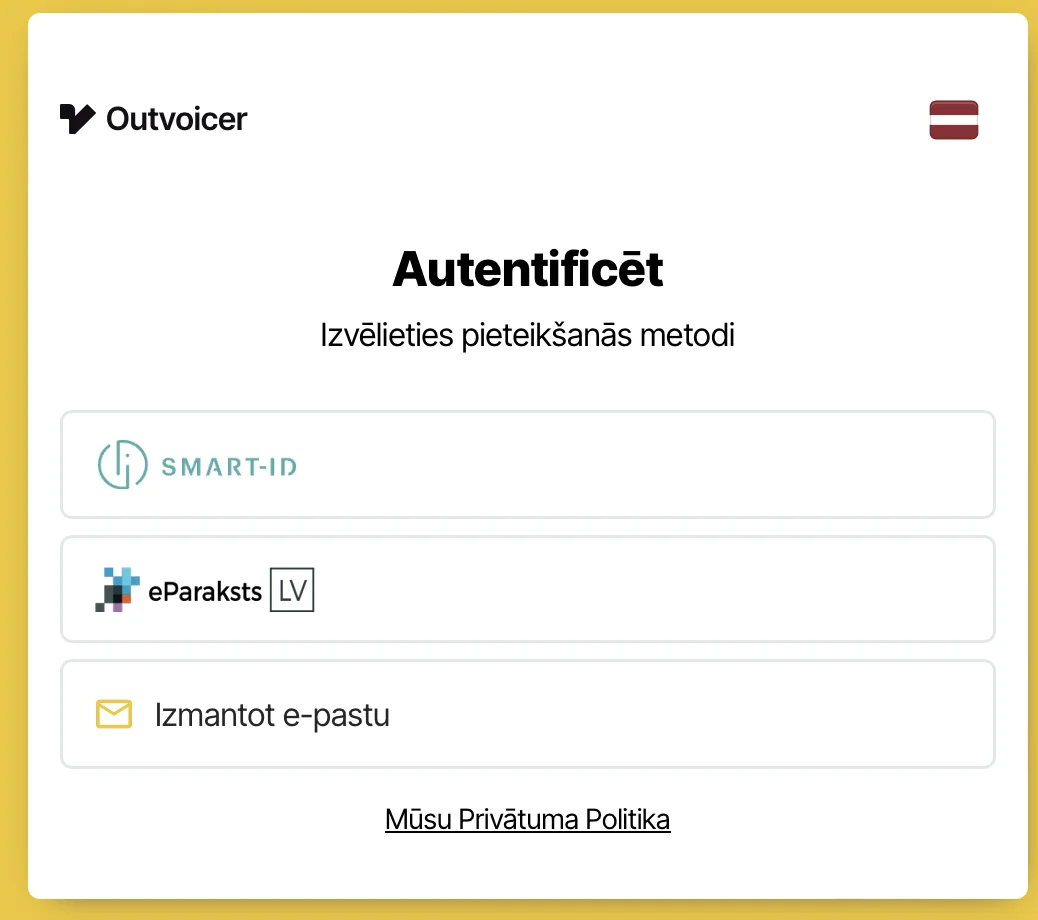
2. Create a new invoice
If your company and client details are already saved, you don't have to start from scratch every time. Outvoicer automatically fills in client details, invoice numbering and VAT information, and lets you design your invoice.
Less manual work — more time for your business!
3. Choose a client and add a product
Choose the client and add details about the service provided or goods sold.
Forget manual data entry! Outvoicer automatically detects and shows whether the client can receive e-invoices.
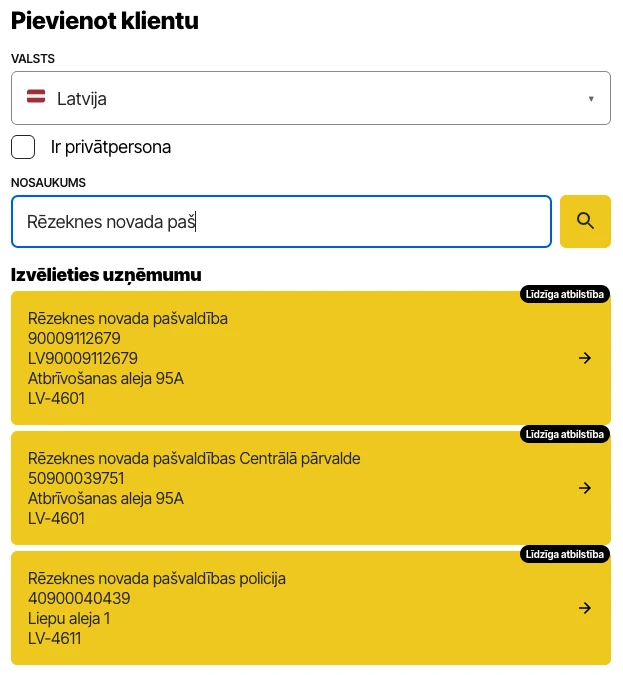
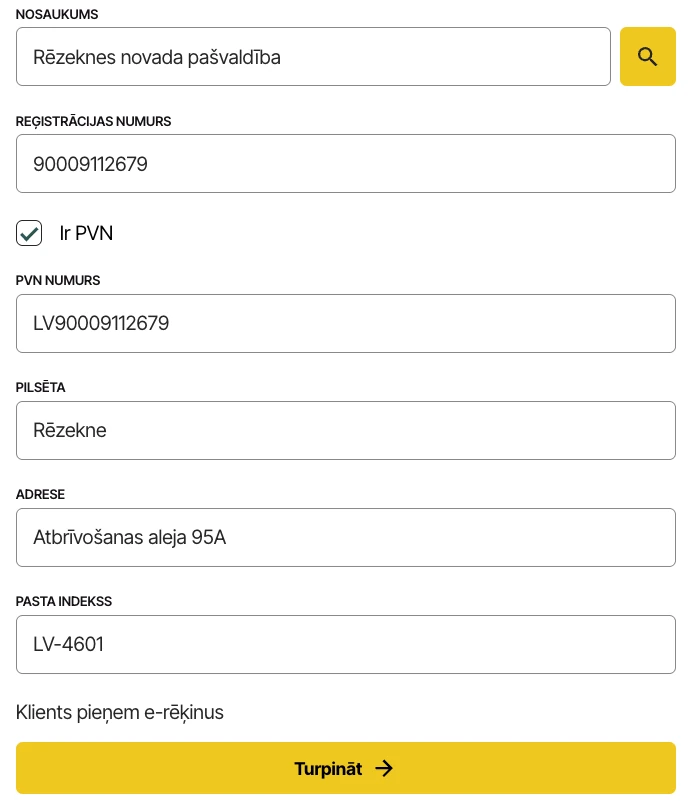
4. Check the invoice details
Before sending, make sure the invoice contains all the required information:
- your and your client's details;
- invoice number and date;
- service or product;
- amount;
- VAT information;
- payment information.
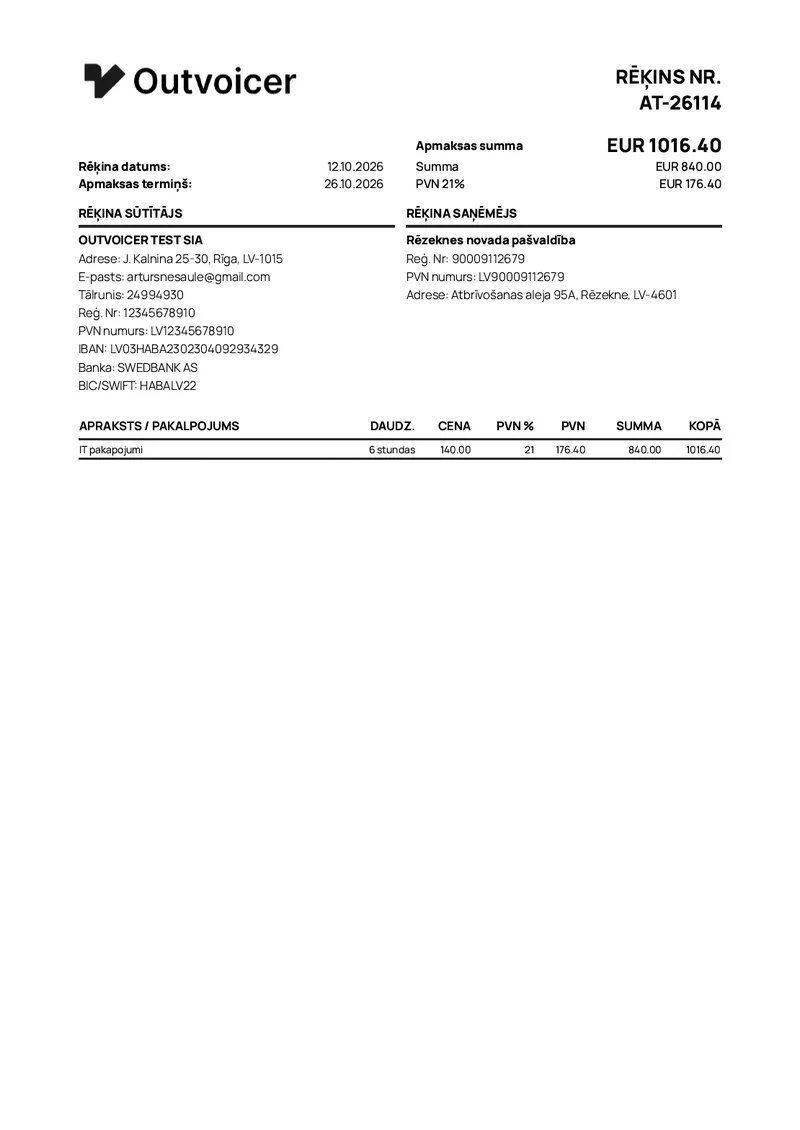
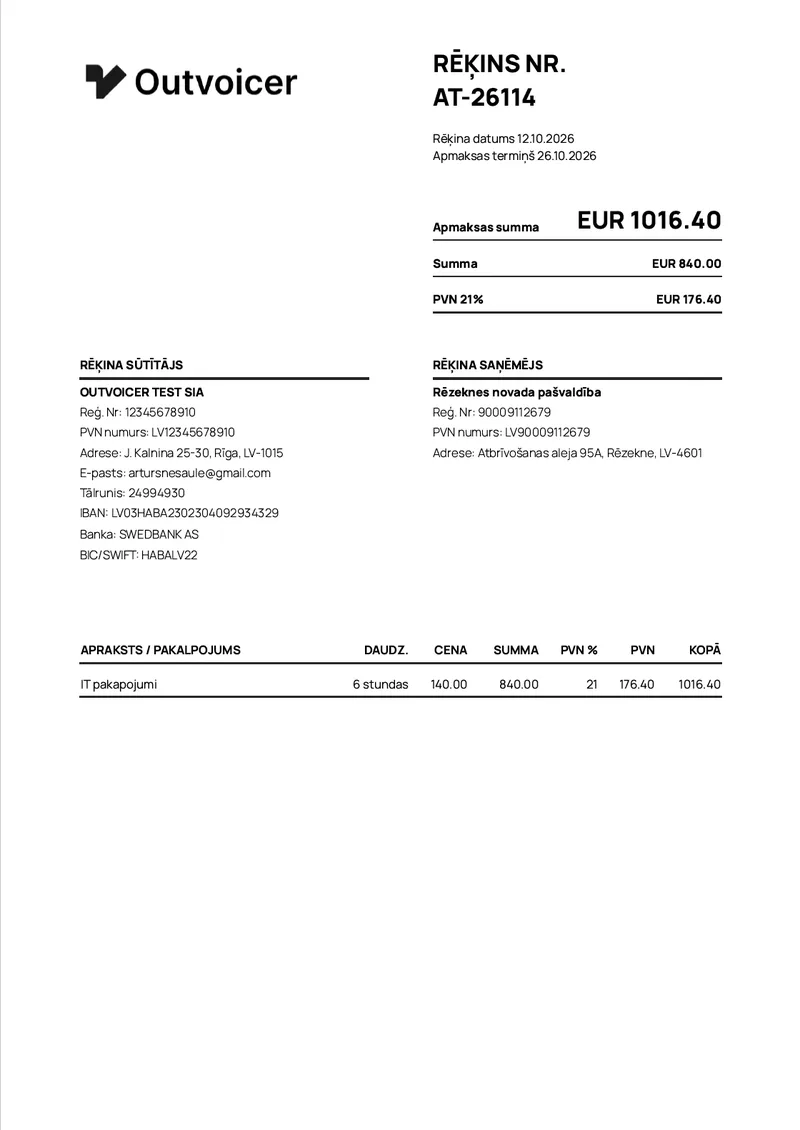
Extra handy: clients and services you've used before are saved automatically, so your next invoices are even faster to create.
5. Send the e-invoice
All set? Send the e-invoice straight from Outvoicer.
There's no need to download an XML file and use another platform just to send it.
Outvoicer lets you prepare and send e-invoices directly from the platform.
Something still unclear? Watch the video tutorial!
An e-invoice is not the same as a PDF
Important: an e-invoice is not simply a PDF file sent by email.
An e-invoice is a structured, machine-readable electronic invoice whose data systems can read and process automatically. A PDF, on the other hand, is mainly a visual document meant to be read by people. Read more in our e-invoicing guide.
That means less manual data entry and easier invoice processing for both you and the recipient.
Why issue e-invoices with Outvoicer?
- Fast — from logging in to a sent invoice within a minute.
- Less manual work — client details, numbering, VAT information and templates speed up invoice preparation.
- All in one place — create and send e-invoices from a single platform.
- Anywhere — Outvoicer works on the web and on mobile devices.
- Built for Latvian companies — Outvoicer is designed around Latvian e-invoicing and tax requirements.
How much time can you save?
Think about your day-to-day: 10 invoices a month — and every time the same routine: entering data, checking amounts and preparing documents. It doesn't have to be that complicated!
Outvoicer's goal is to make invoicing significantly faster and easier!
You can go from logging in to a sent invoice within a minute.
It's not just a few minutes saved. It's time you can spend on clients, your business or simply life beyond admin work. See what our invoicing software costs.
Ready to issue your first e-invoice?
Create your e-invoice quickly and easily with Outvoicer — get started in 60 seconds!